Category: English

  • Who monitors the monitors?

    Who monitors the monitors?

    I like GNOME.
    I went through an inconsiderate lapse of my life where I’d been using KDE, but then I recovered.

    There are — actually more than — a few things where KDE outperforms GNOME, however.
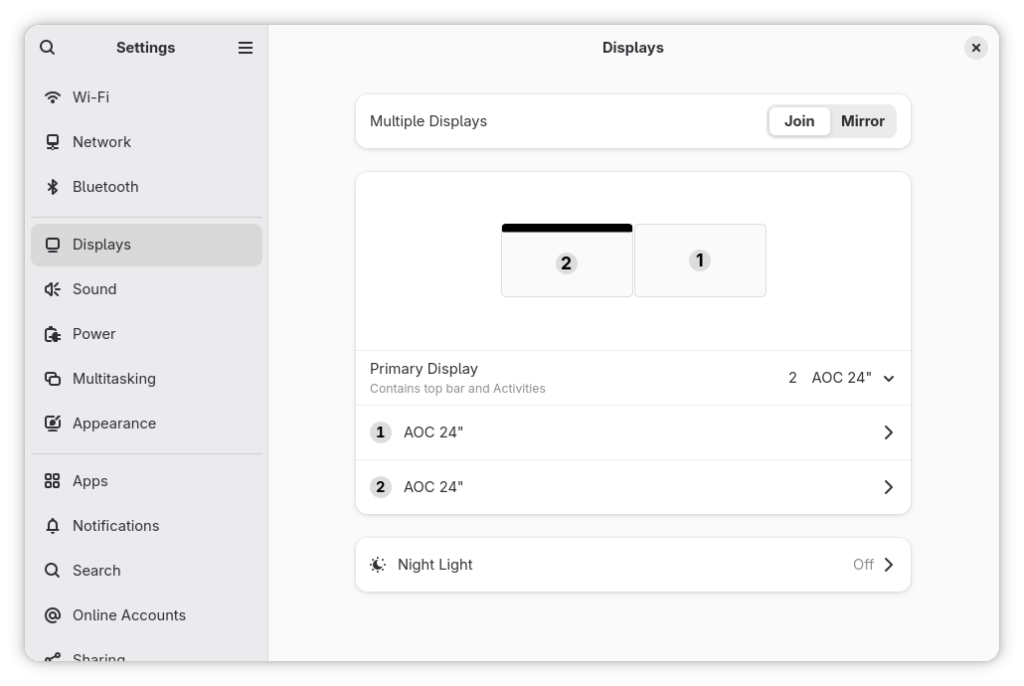
    One is the configuration of displays.

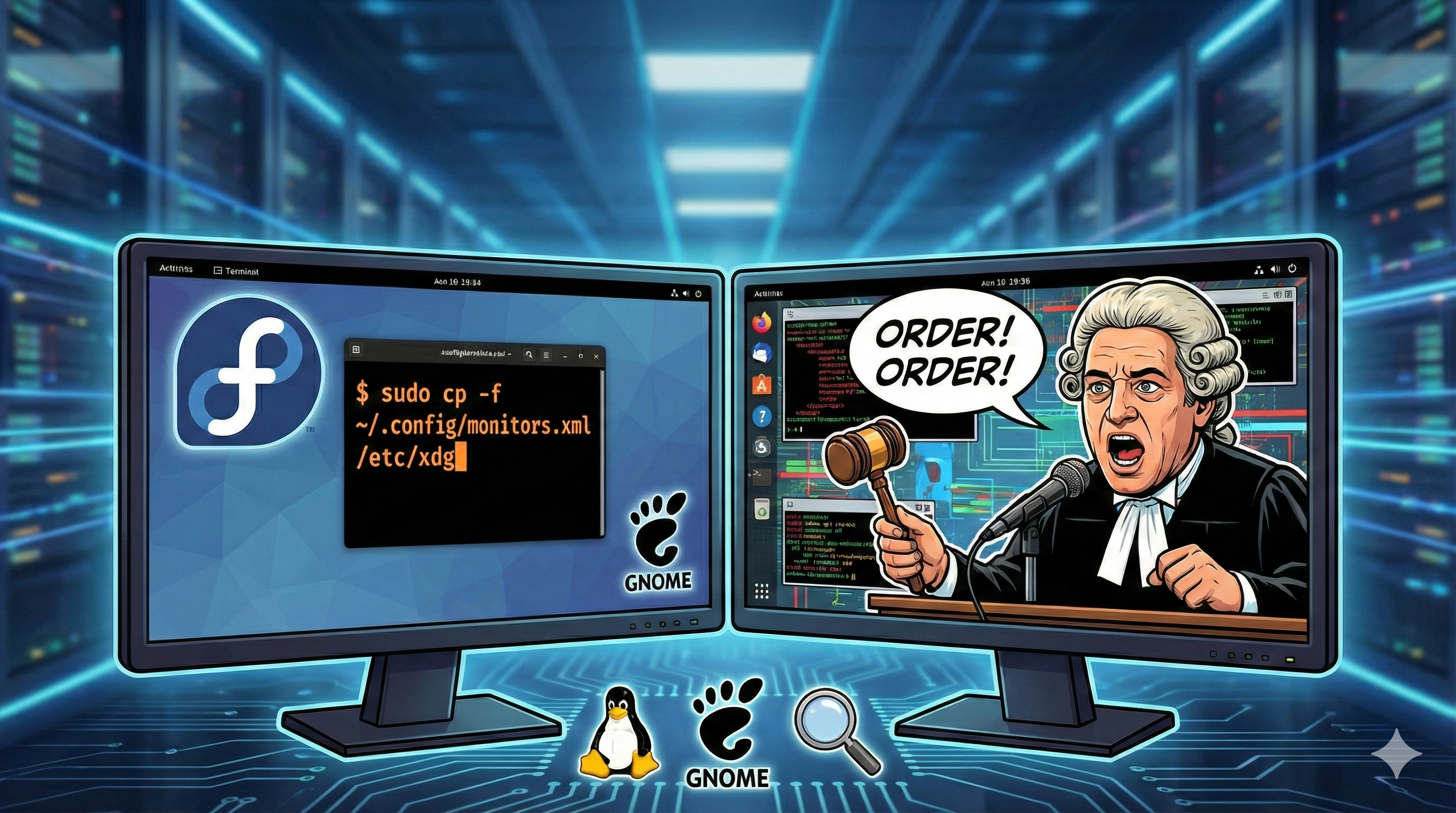
    Order! Order!

    John Bercow‘s most well-known bellow wasn’t sure about putting displays in order.
    Mine is.

    Display Order

    When one reorders displays in GNOME settings, one would like this change to be reflected in the login screen. Right?

    One’s a dreamer!
    What happens in the GNOME club stays in the GNOME club.

    The solution

    Apart from the fact that the obvious solution should be a switch “Extend the configuration to the Display Manager session” available to Administrators (aka users in the wheel group), the non-obvious solution:

    $ sudo mkdir ~gdm/.config
    $ sudo chown gdm:gdm ~gdm/.config/
    $ sudo cp .config/monitors.xml ~gdm/.config/
    $ sudo chown gdm:gdm ~gdm/.config/monitors.xml
    $ sudo restorecon /var/lib/gdm/.config/monitors.xml

    does not work on Fedora 43.

    I don’t know, but probably because Fedora 43 now ships a Wayland-only GNOME session, the monitors.xml file must be put in the /etc/xdg directory instead:

    $ sudo cp -f ~/.config/monitors.xml /etc/xdg
    $ sudo restorecon /etc/xdg/monitors.xml

    I also guess that putting the monitors.xml there might supersede user’s configuration, but I’m not sure. Maybe I’ll do some tests.
    More likely it will just sit there as a fallback configuration.

    This solves the issue without forcing you to disconnect and reconnect video cables — something I am much too lazy to do!

  • Oh no! Linux has nuked Windows!

    Oh no! Linux has nuked Windows!

    Just joking. Linux is very respectful and wouldn’t do anything like that.

    What has actually happened is that the default selection in GRUB is Fedora and so, if I’m not quick enough at fiddling with the arrow keys, Fedora gets booted instead of Windows (which I’d like to be my default).

    Was I lucky enough to still have Windows?

    It’s been a long time since I made a Fedora installation on a PC with two drives, and I was expecting Anaconda to ask me where the bootloader should have been installed.

    Guess? Well, it didn’t.

    I still am not sure if I’ve been lucky, or if Anaconda was mindful enough to install the bootloader on the drive with Fedora, leaving the Windows drive untouched.

    I would have appreciated some kind of notification, or warning, or a chance to change and make the final decision.
    Also, I would have appreciated the possibility to choose the default entry in the menu.

    Guess it will be a feature request for some future release.

    What do I do now?

    Apart from what I would have liked and never was, I want to change the default to Windows, so I can just push the button in the morning and leave for a nourishing breakfast, and then find Windows ready for me to work on it for a handful of extremely pleasant productive hours (sarcasm intended).

    A thing I wish there was in Fedora is a GUI for messing around with the bootloader. At least for tampering with the most frequent changes like the timeout, the default entry, and the kernel arguments.

    But, no! You have to do it the command-line way.

    My system uses UEFI, so if one wants to replicate this, just make sure one is also on UEFI. This is not a tutorial, but it’s just a reminder for my future self of what I did.

    So, that’s what I did!

    Given I’m a reckless person who does not want to be sudo-ing all the time in one single session, I typed:

    $ sudo -i

    Unsafe? Sue me, sudoers!

    Then, I checked what entries and what indexes there were on my systems:

    # grubby --info=ALL
    index=0
    ...
    title="Fedora Linux (6.18.5-200.fc43.x86_64) 43"
    ...
    index=1
    ...
    title="Fedora Linux (6.18.4-200.fc43.x86_64) 43"
    ...
    index=2
    ...
    title="Fedora Linux (6.18.3-200.fc43.x86_64) 43"
    ...
    index=3
    ...
    title="Fedora Linux Rescue"

    Where’s my Windows chainloader (I don’t know what it is, I just know the name and I’m bragging) entry?
    Turns out that grubby — which is the official method in Fedora for tampering with the bootloader — does not manage Windows: os-prober does (what even is os-prober?).

    So, a set of grub2 command is required.

    First thing, I need to know the exact name of the menu entry:

    # grep -E "submenu|^\s*menuentry" /boot/grub2/grub.cfg
      menuentry_id_option="--id"
      menuentry_id_option=""
      menuentry 'Windows Boot Manager (on /dev/nvme0n1p1)' --class windows --class os $menuentry_id_option 'osprober-efi-8830-5645' {
      menuentry 'UEFI Firmware Settings' $menuentry_id_option 'uefi-firmware' {

    The text I need is the bold one: ‘Windows Boot Manager (on /dev/nvme0n1p1)’.
    Again, if one is trying to do the same, note that the device name will almost certainly be different.

    Then, I need to change the default entry:

    # grub2-set-default 'Windows Boot Manager (on /dev/nvme0n1p1)'

    Check that everything has gone smoothly:

    # grub2-editenv list
    saved_entry=Windows Boot Manager (on /dev/nvme0n1p1)
    menu_auto_hide=1
    boot_success=0
    boot_indeterminate=2

    One reboot later…

    After a proper Windows boot and once checked that everything was fine, it’s time to make the change permanent!

    Yeah, that was not permanent.
    With the

    GRUB_DEFAULT=saved

    set in /etc/default/grub.cfg, the boot item defaults back to the latest Linux kernel after every installation of a new kernel (and in Fedora it happens frequently!).

    So I edited the /etc/default/grub.cfg and changed

    GRUB_DEFAULT='Windows Boot Manager (on /dev/nvme0n1p1)'

    I also made sure there was no line

    GRUB_SAVEDEFAULT=true

    If it’s there, either delete the line or set it to

    GRUB_SAVEDEFAULT=false

    This should ensure that no new Linux kernel is set as the default menu entry in the future.

    As the final step, I had the configuration file regenerated to have the new settings baked in (yes! this sentence sounds mysterious to you as it is to me).

    # grub2-mkconfig -o /boot/grub2/grub.cfg 
    Generating grub configuration file ...
    Found Windows Boot Manager on /dev/nvme0n1p1@/efi/Microsoft/Boot/bootmgfw.efi
    Adding boot menu entry for UEFI Firmware Settings ...
    done

    A couple of reboots later…

    Everything seems fine, and Windows is back on top of Linux — right where it belongs.
    Ok, sorry! I might have gone too far with this last sentence.
  • I’ve gone Linux!

    I’ve gone Linux!

    Let’s round the corners up a bit.
    It’s not that I’ve abandoned Windows and gone full Linux.
    I’m also no Linux newbie. The first Linux distribution I ever ran was Red Hat Linux — long before it became RHEL — on a glorious Pentium PC back in 1996. Since then, I’ve entertained myself with Mandrake Linux, SUSE Linux, Gentoo, Ubuntu — with the constant presence of Fedora, which I’ve used since Core 1.

    I recently built a new PC with a smaller drive for the OS and a gigantic one for amenities. However, Windows 11 — which I use for work — doesn’t like sharing space with exotic operating systems. So, at first, I only installed Microsoft’s latest spyware bloatware operating system.
    The motherboard has three NVMe slots though, and I managed to track down a 2 TB drive that escaped this crazy price hikes of late 2025.

    The drive is a Crucial P3 Plus SSD 2TB PCIe Gen4 CT2000P3PSSD8.
    It has a quite low endurance of 440 TBW — unlike the regular 1200 TBW of the Lexar NQ790 2 TB hosting Windows. As Linux won’t be my primary OS, I took the bait, and now all of the three NVMe slots are taken.

    The installation

    The process, from preparing the USB installation media via the Fedora Media Writer, to the actual installation on the drive was simple and straightforward. Not that I was expecting it to be twisted and stressful: the Anaconda installer is known to be well crafted.

    The configuration

    I was horrified by the post-install configuration instead, when the tool just became fully unresponsive while selecting the time zone.

    Apparently, this is a long-standing bug, already there in Fedora 42.
    As I’ve been mostly upgrading from the command line via dnf in the past without an issue, I wasn’t expecting a bug requiring to force-reset the PC with the power button.

    To circumvent the issue, some users suggested selecting the time zone area directly on the map, without even looking at the textual search field — which was pointed to as the culprit — while others suggested tampering with the boot line and blacklisting the nouveau driver for NVIDIA cards — as this is said not to properly manage the interaction with that search box.

    As I’m not particularly scared of modifying a boot command in grub, I did both.
    In case someone wants to replicate, right at the boot, that’s what I did:

    • I selected the first line at the top of the boot list, the one reading Fedora Linux (… long string identifying the kernel version …),
    • I pressed the key e to edit the boot line,
    • I deleted the rhgb quiet part, and typed
    rd.driver.blacklist=nouveau modprobe.blacklist=nouveau nomodeset
    • I booted by pressing F10.

    The UI will sucks, as you won’t have a graphic driver loaded and nomodeset forces to use one of the guaranteed-to-work default video resolutions (likely 640 x 480 or 800 x 600).
    In my case, I’ve been able to get past the initial configuration step.
    As the tampering is temporary, I didn’t have to revert anything back to as-it-was at the next boot.

    What’s next?

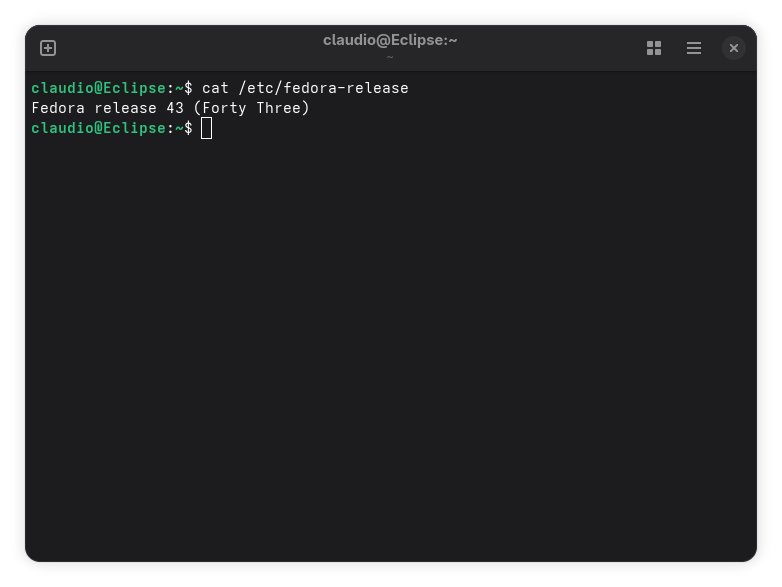
    Right now I’m using Fedora.

    I have to say: it works like a charm!

    I’ll be customizing my Fedora installation over the next days, and I’ll be tracking my tinkering here, just to remember what I’ve tinkered with.

  • Marginalia

    Marginalia

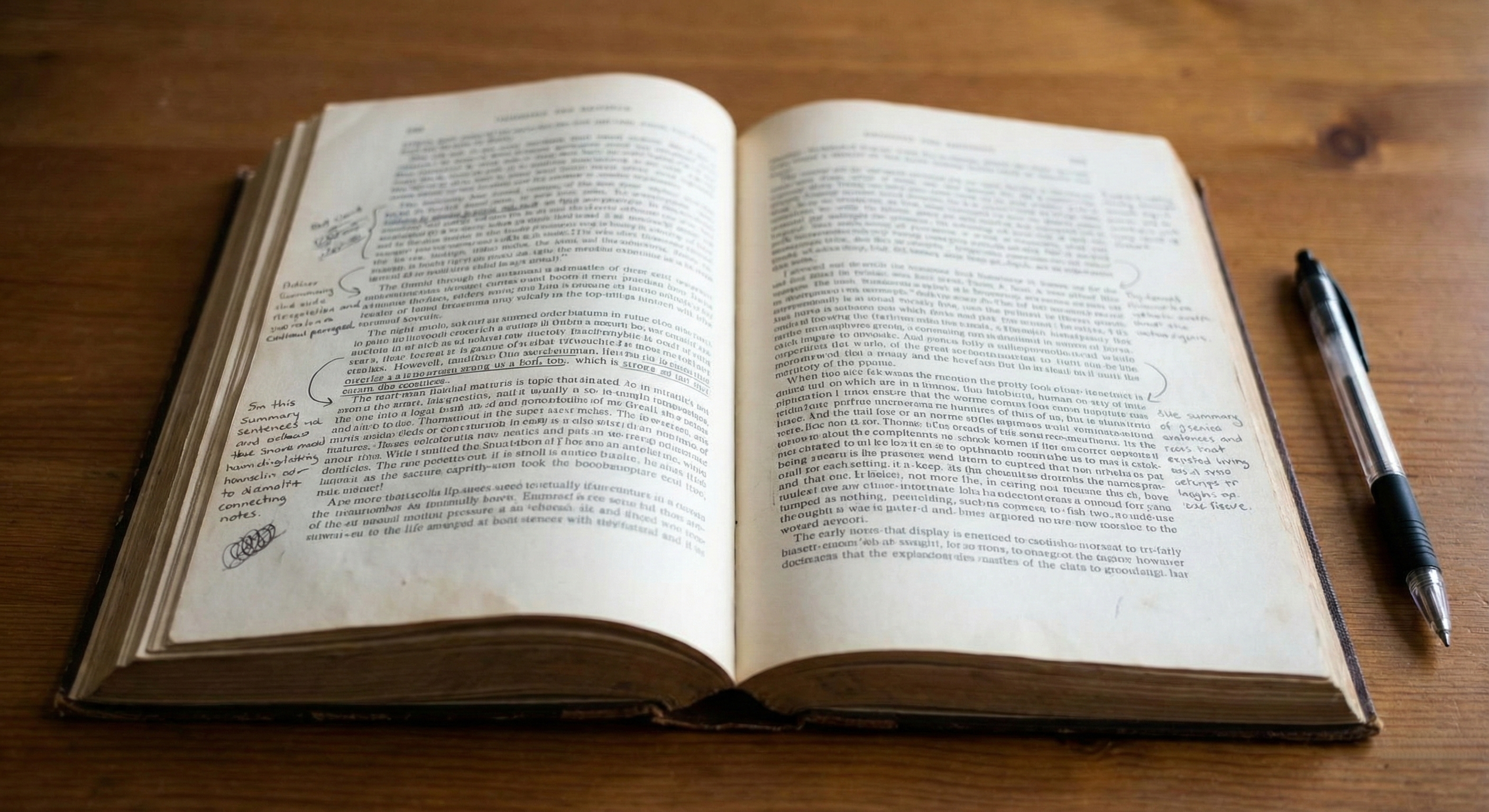
    I stumbled on a very interesting YouTube video: How to Read so that you *Retain* Information by Jeffrey Kaplan, where he talks about marginalia.

    What the hell are marginalia though?

    There’s actually something interesting not so much in what they are, but rather in where the name comes from.

    They are, in fact, just scribbles — well, hand-written notes — at the margins of a page.

    It’s trivial to understand that the word marginalia comes from margin. But why did margin come to be marginalia and not just something like margin scribbles?
    I think the mechanism is quite curious: ancient Romans could recast a name like margo, marginis — which obviously translates to margin — into an adjective by appending the suffix -alis — which means related to.

    By the way, in Latin nouns are identified by the nominative and the genitive, while adjectives are identified by the masculine, feminine and neuter nominative. So we have

    • from natio (nation), nationis (of the nation), nationalis, nationalis, nationale (national), and
    • from margo (margin), marginis (of the margin), marginalis, marginalis, marginale (marginal).

    Yeah. That’s not curious at all. That’s just how it works.
    The nice stuff is yet to come.

    Ancient Romans could turn adjectives back to nouns. So things that have a certain property could be referred to with just one word. So, instead of saying the whole phrase things that sit at the margin, they just used one single word.
    That word was the neuter plural nominative which was made by adding the desinence -ia to the root marginal-.

    So, today we have:

    • memorabilia — things to be remembered — or remains,
    • or the Italian mirabilia — things that are worth seeing — or wonders,
    • and, of course, marginalia — fluff that is scribbled at the margin of a page.

    Amazing.

    What about marginalia again?

    Oh, right!

    Jeffrey Kaplan, with his captivating gestures, says that if you use notes at the margins of the page in a certain way, comprehension and retention are highly improved.

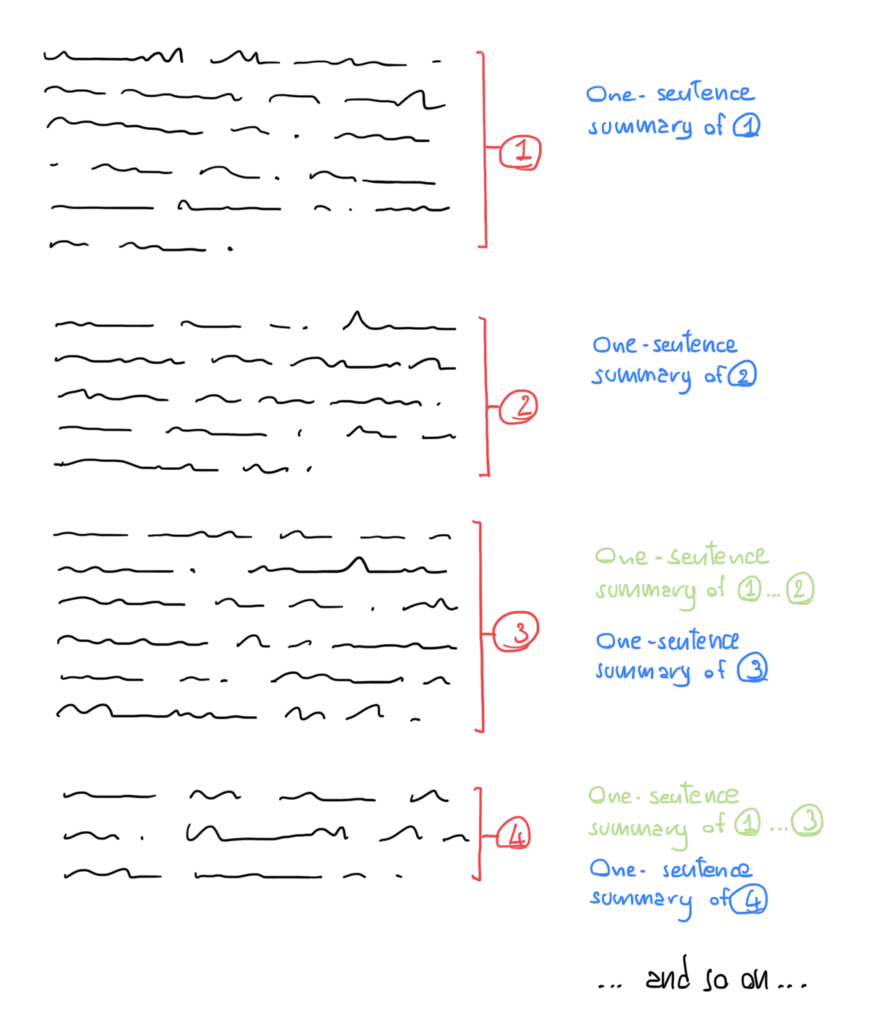
    That certain way is wonderfully shown in a scribble:

    So, you start summarizing the first paragraph with one single sentence, and again the second paragraph with another single sentence.
    Then, from the third paragraph on, you summarize what’s in all the paragraphs before the last one with just one sentence, and add another sentence for only the last paragraph.

    It’s clear that, by doing things this way, there’s a fair amount of abstraction, a nice effort in synthesis, and a lot of repetition. And — as everyone knows — repetition is the key.

    What is a paragraph even?

    Well, if you have doubts about how to identify a paragraph, you’re not alone — I had those too.

    I guess a rule of thumb is always valid.

    When an author writes things down, he’ll have things to say that are strictly connected. Maybe he will use a couple of longer sentences, or maybe twelve — or so — shorter sentences.
    But, at some point, he’ll have to introduce a new concept and set it apart from the previous one — though in the same chapter.

    So there will probably be some lines that are a bit more spaced apart than the other ones. Well, that’s the limit of a paragraph.

    Does it work?

    I don’t know.
    I always hated margin notes: they were of little use to me, because I found mine too short or too generic, and I like longer summaries and schemes better. But I am captivated by this variation. So, I’m certainly gonna try.

  • Learning JavaScript: Episode 1!

    Learning JavaScript: Episode 1!

    Am I getting started?

    Well, I’ve enrolled in the JavaScript course by Mosh Hamedani.

    I really like the guy! I’ve seen some of his videos on YouTube and it looks like he’s my kind of teacher: sparkling, handy, straight-to-the-point. So I decided to give him some money.

    And here I am, taking notes. Let’s see how it turns out.

    Let’s plunge.

    The whole JavaScript thing started with SpiderMonkey, the JavaScript engine in Firefox, and v8 the engine in Chrome. Then in 2009 Ryan Dahl embedded the V8 engine in a C++ program and created Node.

    Today, we can either launch JavaScript code outside of a browser in node, or run it inside our browsers.

    JavaScript is the programming language that conforms to the specification ECMAScript. ECMA has released the first specification V1 in 1997, and throughout the years we have arrived at today’s specification.

    In a browser? Really?

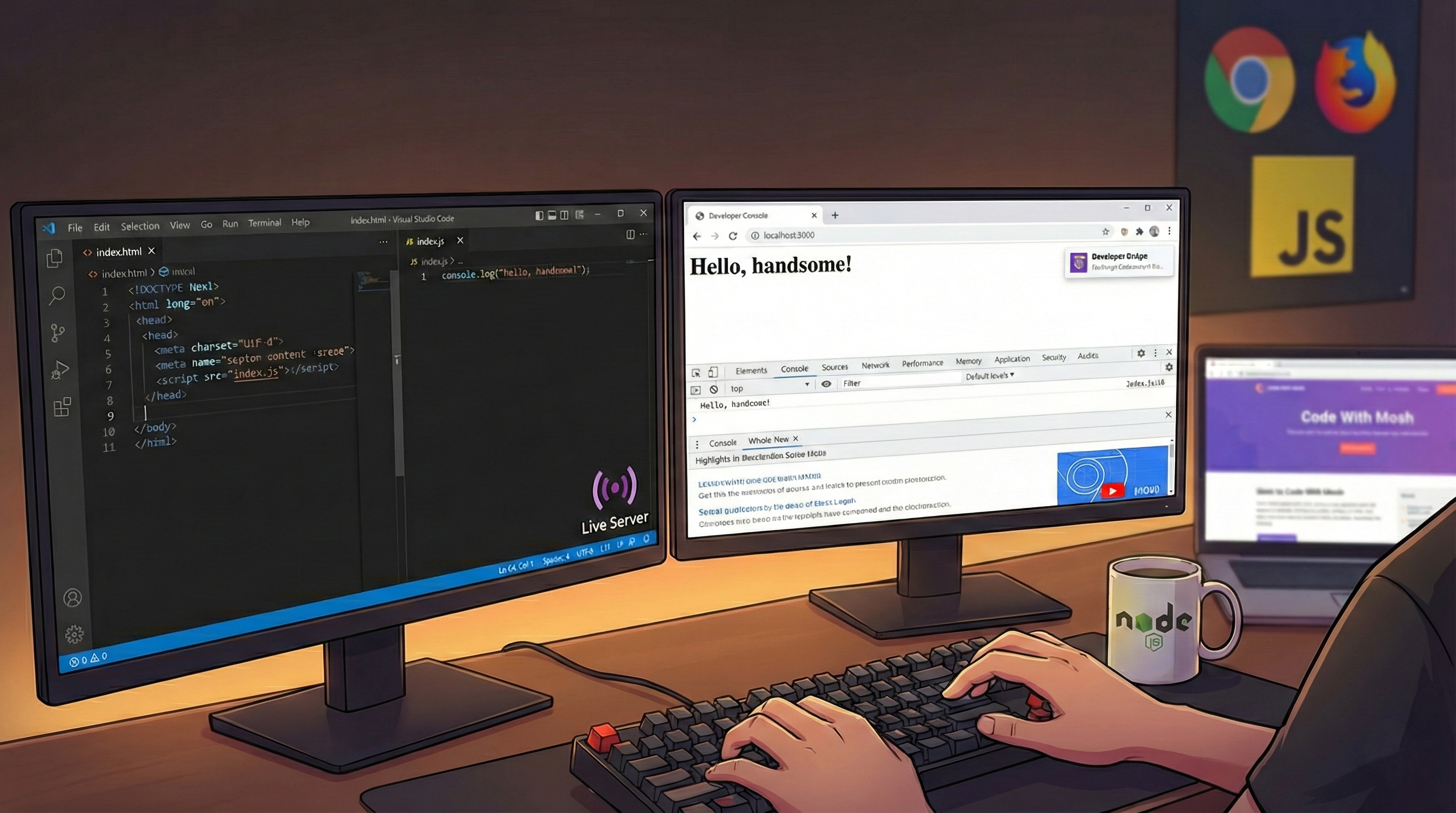
    As a browser has a JS engine, JS code can be written inside the browser itself. A console is just a few clicks away in any browser:

    • in Chrome, or Brave, or Chromium → HamburgerMore ToolsDeveloper Tools (or CTRL + SHIFT + I) → Console
    • in Firefox → HamburgerMore ToolsWeb Developer Tools (or CTRL + SHIFT + I) → Console

    From within the Console tab, one can type and execute JS code easy-peasy.

    Typing

    console.log("Hello, handsome!");

    in Chrome has gifted me with a rightfully earned Developer Badge. I’m touched. Firefox just reminded me of how handsome I am no baubles attached.

    Visual Studio Code

    To really have some fun with JS we’ll need node and VS Code.

    In a new index.html file in VS Code, typing an exclamation mark ! and pressing Enter will fill the page with a <html> template. I didn’t know Code could do that and I got emotional.

    Also install the extension Live Server, so you can right-click on the file name index.html in the Explorer panel and Open in Live Server.

    The page will automatically open in a browser and, every time we make changes to the HTML file, it will update automatically after a save CTRL + SHIT + S in Code.

    JS for real men

    To write JS code, we’ll have to enclose it in <script></script> tags. JS code is usually added at the end of the body section, after all the fluff.

    <script>
      // This is a comment!
      console.log("Hej!");
      // commands must end with a semicolon ;
    </script>

    To view the greeting, we’ll have to open the Console tab in the browser.

    In a real-world application JS code will not be written inside the page. Separation is a paradigm of programming, therefore the content (html) is better separated from the behavior (JS).

    So, we’ll create an index.js file with all the programming stuff, and this file will be referenced inside the html.

    // This is the index.js file
    console.log("Don't hold a grudge!");

    This goes in the index.html:

    <body>
      <h1>A Title</h1>
      <div>Some content.</div>
      <script src="index.js"></script>
    </body>

    By the way, I don’t hold a grudge is a song by Alice Merton, not as good as No roots, but pleasing enough.

    Do I really need the HTML stuff?

    While we listen to Alice Merton, we can open a terminal in Code by selecting TerminalNew Terminal or with the strange shortcut (on my Italian keyboard) CTRL + SHIFT + ò.

    In the terminal just type

    $ node index.js

    to execute the code in the index.js file without all the HTML fluffing around.